
Python path · All steps · Change language
Lesson 6 of 6
Commit the reviewed repair and leave a handoff
Use Source Control to record the source changes you reviewed. A commit gives you a named point in the local history to return to later.
Stage and commit in VS Code
- Choose File → Save All. In Source Control → Changes, select the + beside each reviewed source file you want in this commit. The file moves to Staged Changes.
- Open each file under Staged Changes and inspect its diff. This is the content the commit will record. If the same file also appears under Changes, it has newer edits that are not staged; review and verify those before deciding what to include.
- To remove a file from the selection while keeping its edits, select − beside it in Staged Changes. Discard Changes removes edits and is a different action.
- Enter a short message in the Source Control message box, such as
Repair grouped figure layout for journal specifications. Choose Commit. If the button offers a combined action, use its dropdown to choose the local Commit action. - Confirm that Staged Changes is empty and your commit appears in the Source Control Graph. Any source files you deliberately left unstaged remain under Changes. VS Code commit instructions
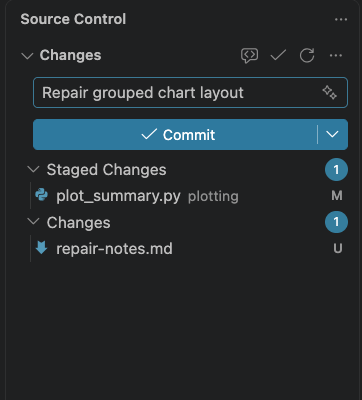
The source file is selected for the next commit; the untracked example note is not. Use your chosen language’s plotting file. VS Code 1.137.0 on macOS, September 11, 2026; select the image for full resolution.
runs/ remains ignored, so the PNG and alt text are not in the source commit. Push, Sync Changes, and Publish communicate with a remote repository; the exercise ends with a local commit. You do not need write access to the FritscheLab repository. VS Code remote and local workflow
If Git asks for your name and email
Copilot sign-in grants access to the assistant; Git’s commit identity labels the author of a commit. They are separate settings. In Agent, paste the following after replacing both bracketed placeholders with the identity you want recorded. You can use the no-reply address shown in your GitHub email settings.
Configure Git commit identity for this repository only, using the name
[YOUR COMMIT NAME] and email [YOUR COMMIT EMAIL]. Do not change global Git
settings, source files, or remotes. Show the resulting repository-local
identity. Do not commit or publish; I will retry the local commit in
VS Code Source Control.
Read the action before approving it, then retry Commit. If Git reports another problem, open View → Output and select Git to read the diagnostic, or ask Copilot to explain that specific message.
Write the handoff
Three sentences are enough:
What changed? Which commands, checks, and visual reviews did you actually complete? Where are the PNG and alt text, and what remains unresolved?
Name runs/with-fix/summary.png and runs/with-fix/summary.alt.txt, and give actual outcomes from the expanded execution results. Be specific about unfinished items, including physical-size, grayscale, or accessibility checks. Use the handoff template if you need more structure.
Share the reviewed PNG and description together through your usual approved channel. When placing the figure in a document or slide, attach the description in the image’s alternative-text field; a separate text file is not automatically read by assistive technology.
Optional: try a stacked version
Ask for a stacked version in a separate copy. Agree on a new layout brief and preserve the counts. What does it make easier to compare? Keep your completed journal figure too.